
Activate your app
Point the camera at the barcode
Step 1 of 2 — Scan your ID barcode
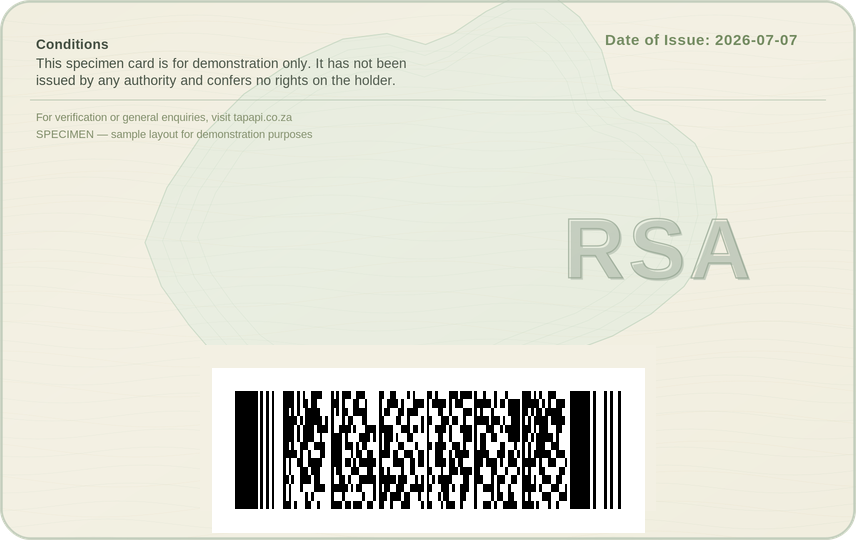
Turn your SA Smart ID card over — the back has a barcode. Hold the phone like you’re taking a photo of the card. Move the card until the barcode is inside the yellow frame — it scans by itself. Got the old green ID book? Open your wallet with your cell number and add the book from inside it.
🔑
Nearly done!
Step 2 of 2 — Choose how you will log in
Your wallet opens with your cell number and a PIN you choose now. Never give your cell number and PIN to anyone. If you share them, your wallet will be locked.
✅
Hello!
Step 1 of 3 — Get the app
Chrome may ask “File might be harmful”.
Tap Download anyway. It is safe.
No question asked? The download started quietly — tap the ↓ arrow at the top of Chrome to find it.
⬇ Download the app
Tap Download anyway. It is safe.
No question asked? The download started quietly — tap the ↓ arrow at the top of Chrome to find it.
⬇️
Step 1 of 3 — Downloading
Chrome asked “File might be harmful”?
Tap Download anyway. That starts the download.
No question asked? It downloaded quietly — tap the ↓ arrow at the top of Chrome, then tap the file.
Tap Download anyway. That starts the download.
No question asked? It downloaded quietly — tap the ↓ arrow at the top of Chrome, then tap the file.
The file SpeedPoint.apk is downloading.
Wait a few seconds for it to finish. Chrome does this quietly — you might not see anything change on the screen.
📲
Step 2 of 3 — Install the app
1
Find the file. Two easy ways:
- Pull down from the top of the screen. Tap SpeedPoint.apk.
- Or open your Files or Downloads app. Tap SpeedPoint.apk.
2
It asks “Install this app?” — tap Install.
3
Google Play Protect may check the app first — that is good. Let it scan. TapAPI is safe, and the scan proves it to you.
4
See a warning? Tap Install anyway. It is safe. Blocked with no Install anyway button at all? That is Auto Blocker — see the note at the top of this step.
5
When it is done, tap Done.
🎉
Step 3 of 3 — Open your app
1
Tap the yellow Open my app button below.
2
Your app opens. Do not close it.